Having trouble finding the files you need?
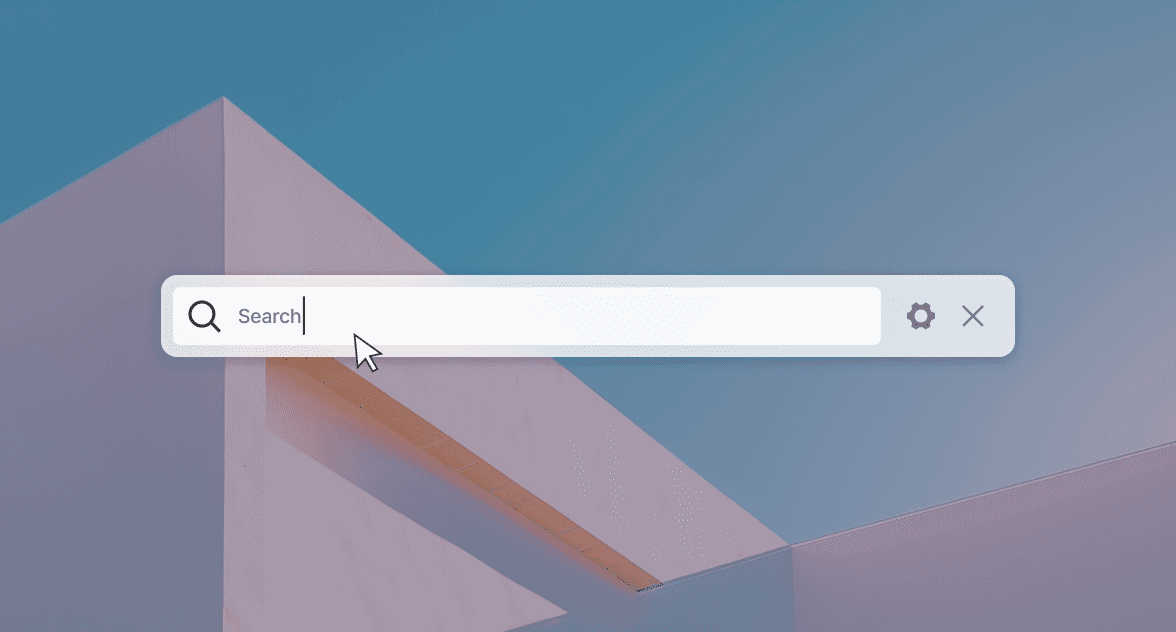
With ezFinder, search instantly with just a few characters!

Find files, folders, and apps quickly as you type, running lightweight without unnecessary resource consumption.
Accurate and fast navigation with lightweight capacity
Experience firsthand why ezFinder is so special.

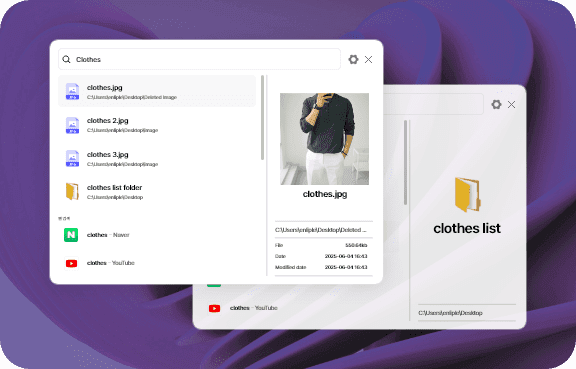
Full Path Navigation Support
Search all paths at once regardless of drive or folder location.
Smart Result Organization
Filter only the formats you want like documents and images, and we're preparing to automatically show recently used items.

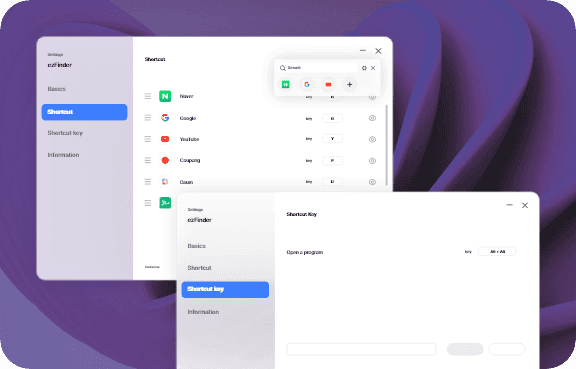
Instant Launch with Shortcuts
Call up ezFinder anytime with your set shortcut and start searching right away.

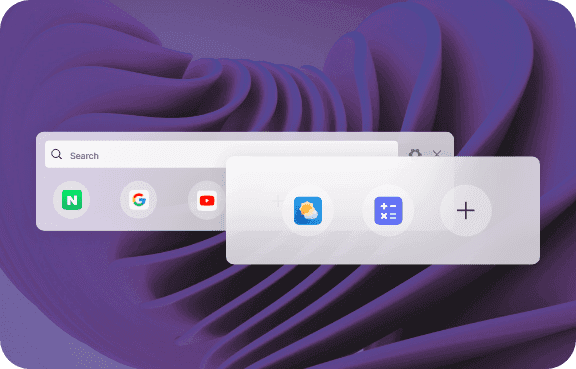
Quick Utility Access
UpcomingWe're preparing to let you use simple features like calculator and weather directly from the search bar.
Real user reviews
Check out blog reviews and posts with user experiences.
ezFinder Tips from Bloggers
Check out blog reviews with real user experiences and know-how

A Search Program for Everyone

Soon
Frequently Asked Questions
ezFinder chosen by many professionals, check its usage and questions at a glance
Of course! Open the finder and search major domestic and international sites directly with simple commands, keeping your workflow uninterrupted. - Naver search: N spacebar today weather - Google search: G spacebar AI technology trends - Coupang shopping: C spacebar wireless keyboard recommendation
Press the Alt key twice in a row to launch EZFinder anytime, anywhere, and you can change the shortcut key to Ctrl+Ctrl or Tab+Tab in settings.
We can find all files saved on your PC in the blink of an eye. Search any file type instantly with just a keyword - scattered documents, important photos, frequently used programs, etc., regardless of file extension.
Yes, clicking on a file or folder in the search results will immediately open the folder at that path. No more wasting time finding which folder a file is in.
Yes, if multiple files with the same name exist, the most recently used file is shown first, allowing you to quickly find frequently used files.
Yes, you can view basic information like file size and last modified date along with the search results, making it easy to distinguish desired files.
Yes, you can view image file contents in a preview window without opening them separately. We plan to add the ability to preview various files such as documents and PDFs without opening them separately.
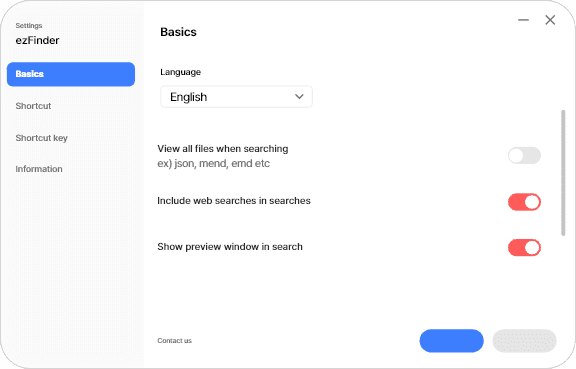
Yes, it supports Korean, English, Japanese, and Traditional Chinese, and you can easily change the language in the program settings menu.
Yes, you can customize both the short keyword prefix for searches and the program shortcut key to your preference.
You can reset all options to their default values through settings reset.
Go to Settings > 'Contact Us' to access the EZLab customer service website directly.