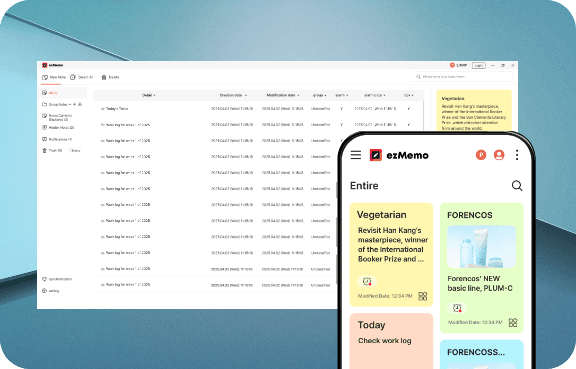
ezMemo
ezMemo

Manage everything smartly,
from daily small ideas to important tasks.

Recommended specs: Windows 11, 10 File size: 72(MB) Latest update: 2025.12.31

Record every day with easy memo features

Manage everything at once, from quick and easy notes to calendar integration.
Quick Memo Add

Check memo list and quickly add memos from the home screen for enhanced user convenience.

Smart Memory Management Tool

Experience firsthand why ezMemo is so special.

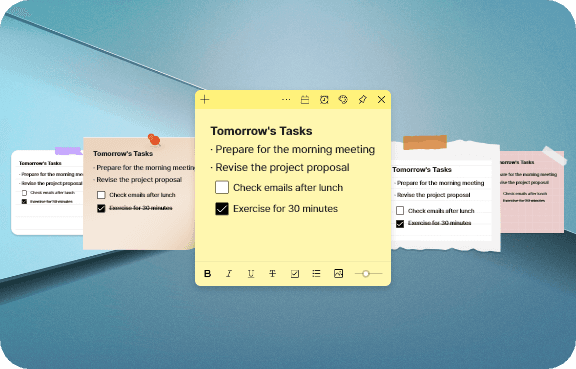
Free Memo Writing and Editing

Free Memo Writing and Editing

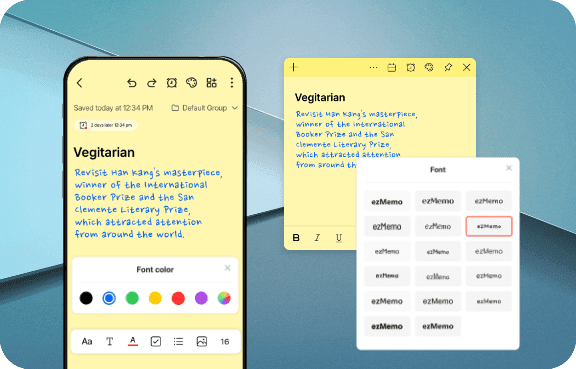
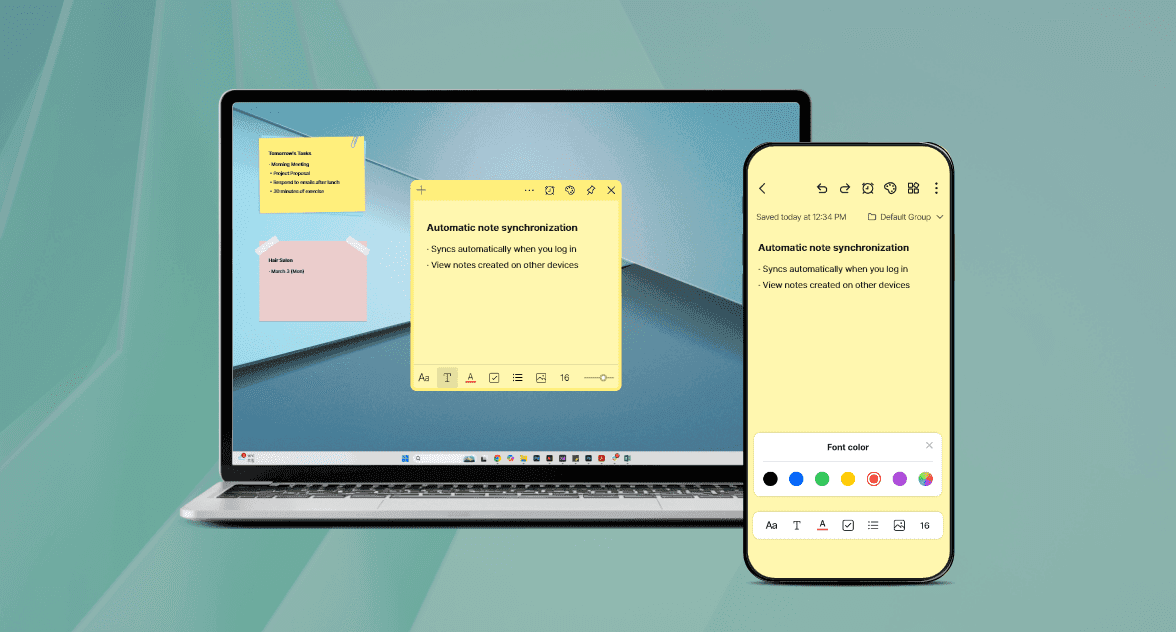
Supports text input as well as formatting changes like bold, italic, underline, and image attachments.

Never Miss Schedules with Notifications

Never Miss Schedules with Notifications

Set notifications on memos to check important tasks on time.

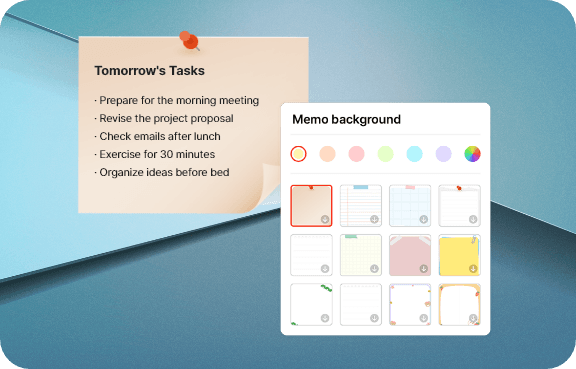
Memo Colors & Group Classification

Memo Colors & Group Classification

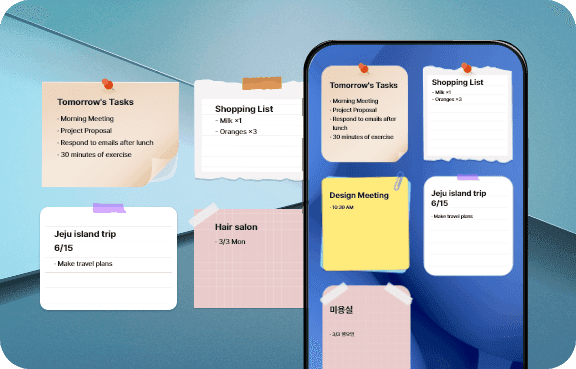
Organize memos neatly with colors and groups.

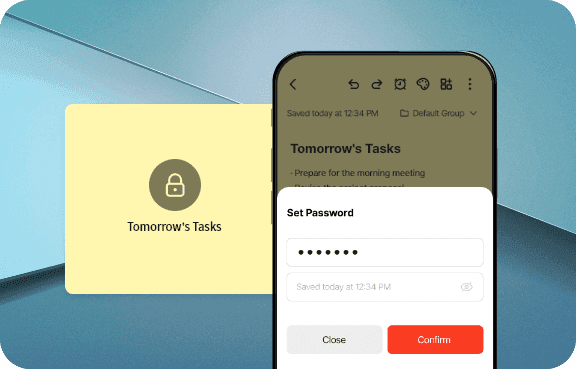
Memo Lock Feature (Password Protection)

Memo Lock Feature (Password Protection)

Lock important memos with a password to keep them safe.

List View & Trash Support

List View & Trash Support

Find easily with date sorting, and restore deleted memos from trash.

Hyperlink Feature
Coming Soon

Hyperlink Feature

Upcoming

Display links neatly with icons and names for better readability and recognition.

Real user reviews

Check out blog reviews and posts with user experiences.

5 /5

Flawless Reminder Notepad

Setting meeting times for each memo brings precise notifications, so missed schedules have completely disappeared. It's like having my own secretary.

fa****@gmail.com
5 /5

Color-coded organization at a glance!

Blue for work, yellow for external schedules, pink for urgent matters! Color-coding makes complex tasks organized and clears my mind.

se******@outlook.com
5 /5

Dreaded PC shutdown..

I was shocked when my computer suddenly turned off, but I was moved that my memos survived. I use it without worrying about losing data.

ke****@daum.net

ezMemo tips from bloggers

Check out blog reviews with real user experiences and know-how

Frequently Asked Questions

ezMemo chosen by many professionals, check its usage and questions at a glance

Yes, you can record notes more vividly by attaching photos. Save whiteboard photos from lectures, meeting materials, receipts, visual resources found online, and more together with text for easy review anytime.

Yes, with the group creation feature, you can organize scattered notes neatly. Create your own categories such as 'Work', 'Study', 'Personal Project' to classify notes by topic and manage them efficiently.

Yes. Select the desired color from the color palette at the top of the note. Assign note colors based on task priority (e.g., red-urgent) or personal classification (e.g., blue-ideas) for quick content understanding at a glance.

Yes, you can set alarm functions for each note to help you not miss important schedules like meetings, appointments, or project deadlines.

You can quickly search by note title and content. Find needed information instantly to increase work or study efficiency.

Yes, you can set a password when editing the note title to encrypt and protect the content. You can also temporarily unlock it with a one-time unlock.

Yes, you can quickly check notes written by period through 'Today', 'Last 7 days', 'Last 30 days' categories.

Yes, you can pin the note widget to the top of the screen so it always appears on top of other programs.

Yes, you can add and delete groups from the home screen and rename groups. You can classify notes by topic and sort by latest or name.

Yes, you can select colors from the color palette at the top of the note, and apply various text styles such as bold, italic, underline, checkbox, strikethrough, bullet points, and transparency.

Yes, you can adjust the desktop widget display settings to hide or show notes.