ezZip
ezZip

Experience fast and powerful compression
and decompression with a smart compression tool.

Recommended specs: Windows 11, 10 File size: 71(MB) Latest update: 2025.12.31

Experience the convenience of easy and fast compression

The beginning of light and fast management

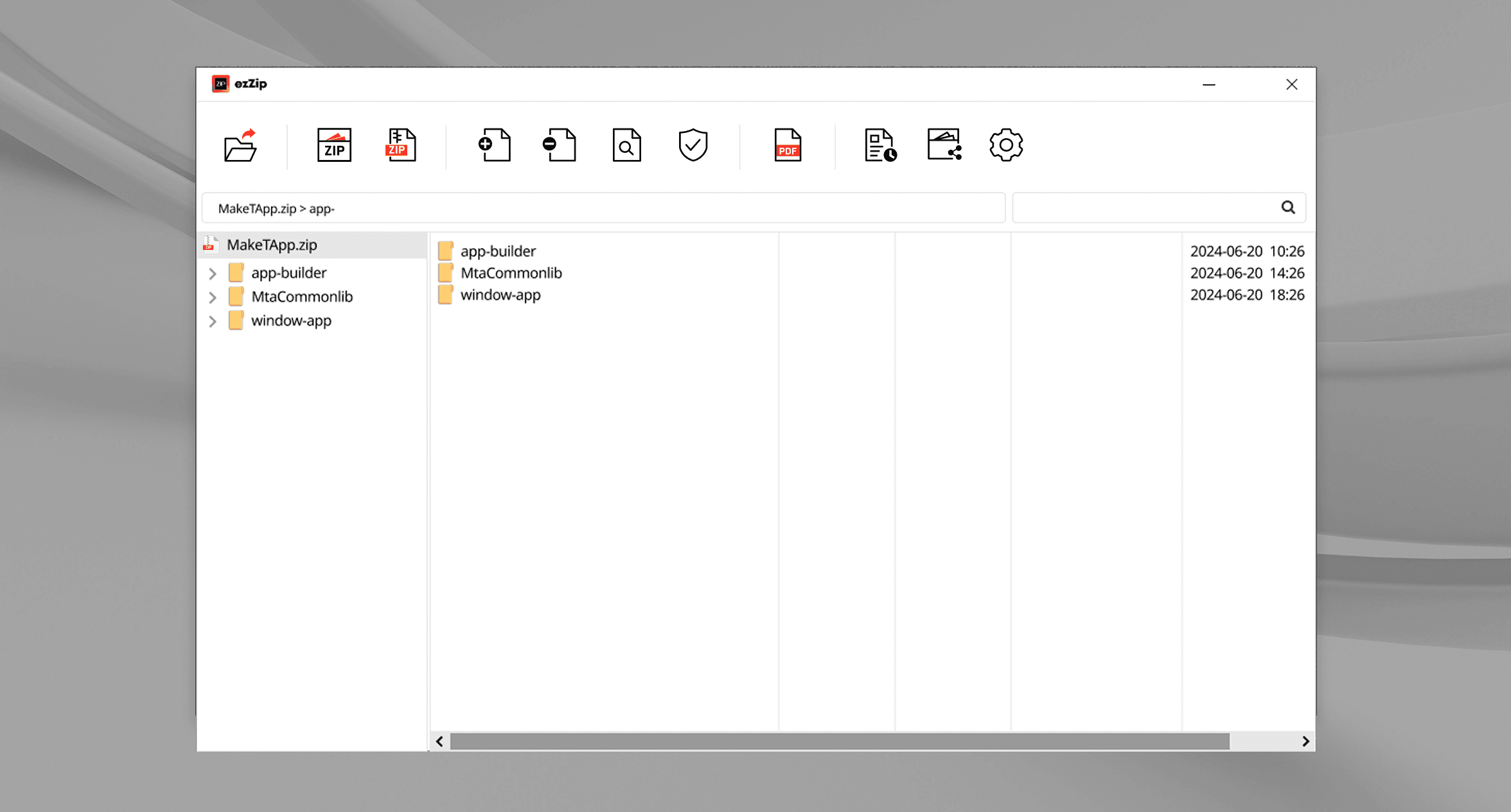
Open Archive

Open various archive formats and quickly check the contents you want.

Smart Compression Program

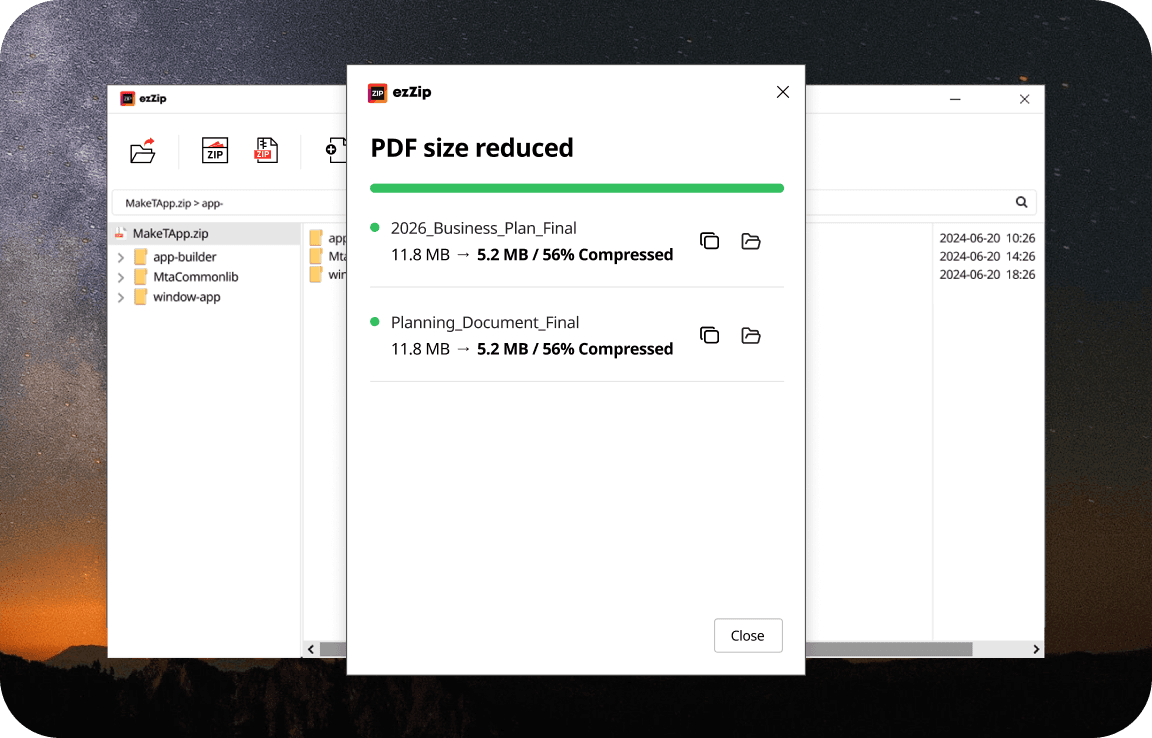
A smart tool with various format support, security, and sharing features

Fast compression and easy extraction

Fast compression and easy extraction

Compress large files quickly and extract them stably to improve work efficiency.

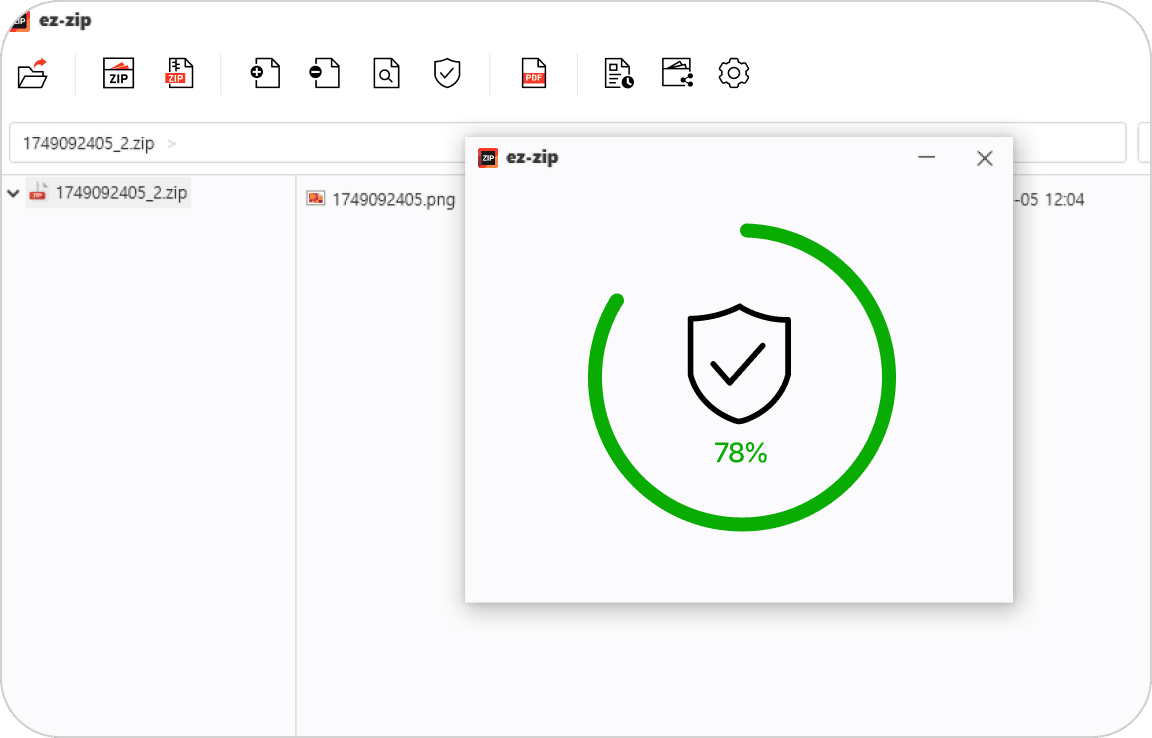
Virus scanning function

Virus scanning function

Automatically scan for viruses when extracting to use files safely.

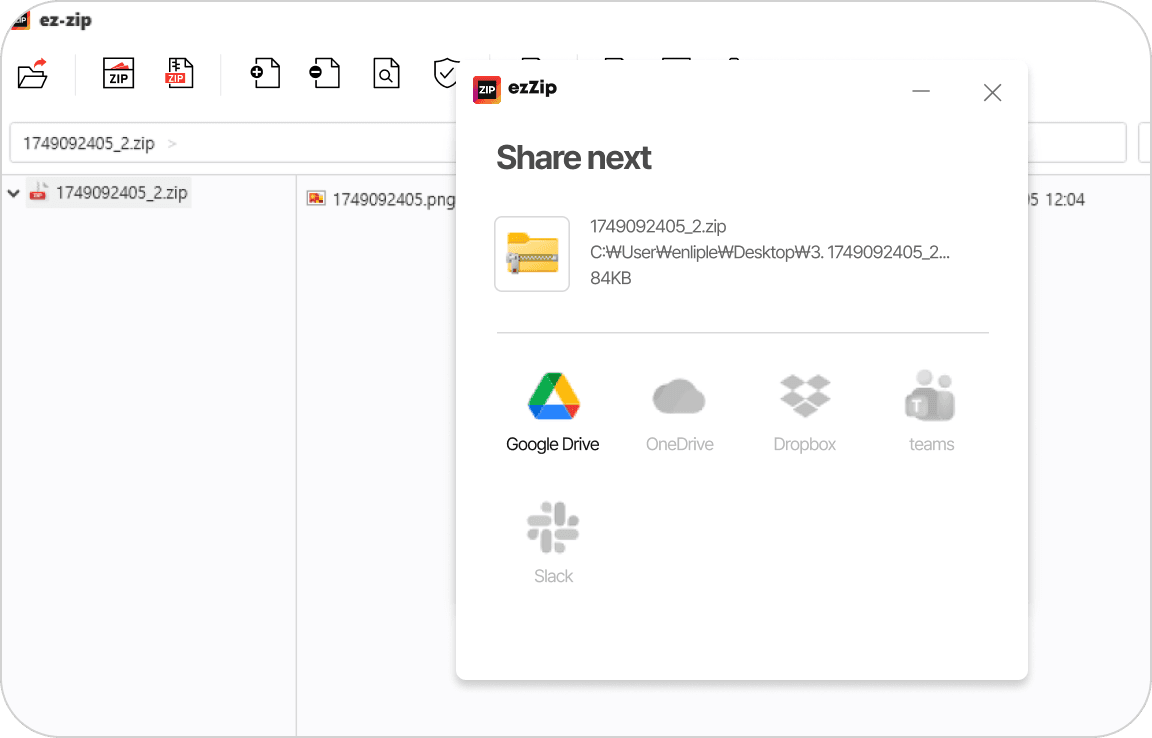
Archive sharing function

Archive sharing function

Connect directly with messengers, Google Drive, and Dropbox to share archives conveniently.

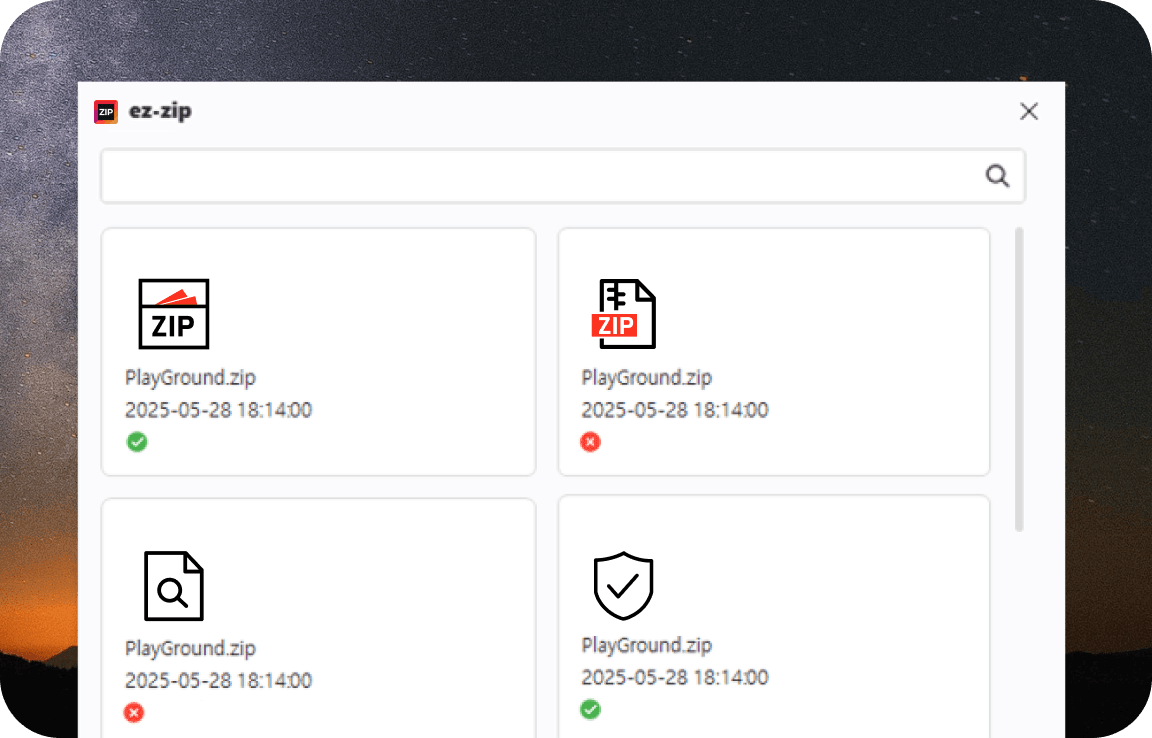
Recent usage history

Recent usage history

Check your frequently used archive list to easily reopen and find them.

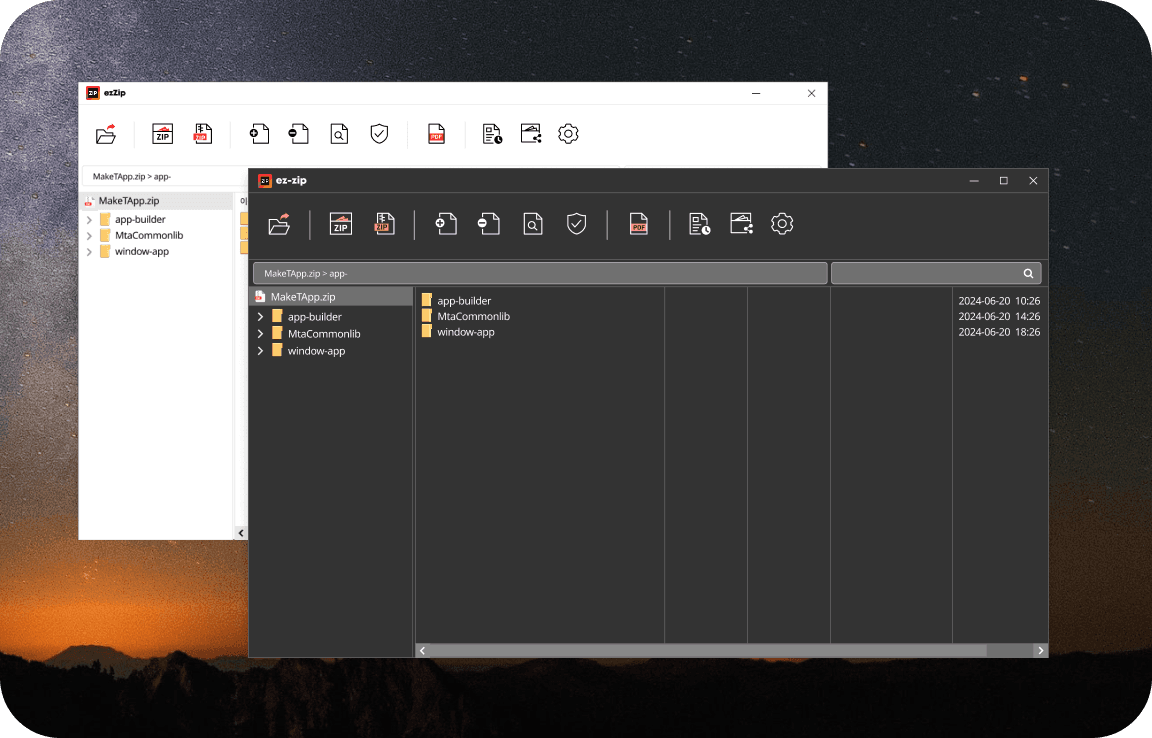
Dark theme support

Dark theme support

Eye-friendly dark mode theme reduces fatigue even during long working hours.

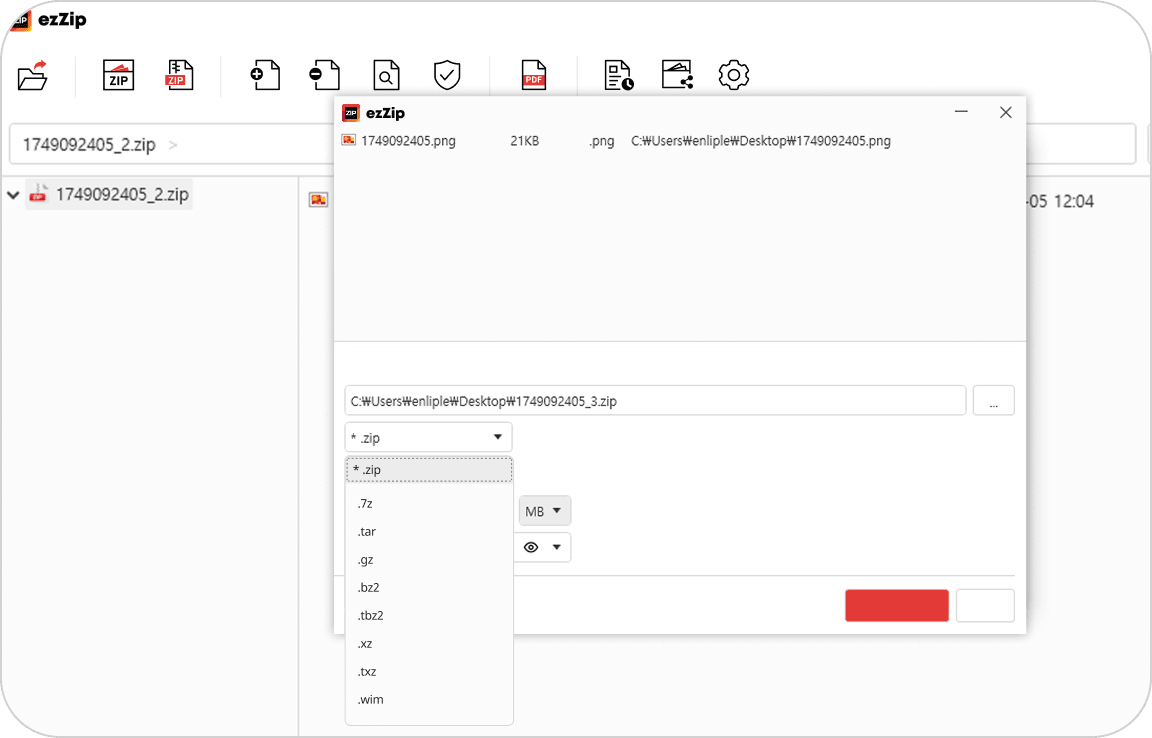
Various format support

Various format support

Support various compression formats such as ZIP, 7Z, bz2 to process any file without problems.

Real user reviews

Check out blog reviews and posts with user experiences.

5 /5

Clean UI without clutter - the best~

Just the necessary compression/extraction, fast and clean, without complicated ads or useless features. This is a real utility!

su****@gmail.com
5 /5

Done with just a double-click!

After setting the default action to 'double-click' in settings, the archive extracts immediately without unnecessary steps. So convenient!

yn****@naver.com
5 /5

When large attachment size is exceeded

There are options pre-set for Gmail capacity limits. Try 'split compression' to easily send large files.

ch***@daum.net

ezZip tips shared by bloggers

Check out blog reviews with users' real experiences and know-how

Frequently Asked Questions

ezZip chosen by many experts, check its usage and questions at a glance

EZZip supports compressing multiple files or folders individually. Usage method: 1. Select multiple files/folders in File Explorer 2. Right-click mouse -> Select "Compress individually with EZZip" menu 3. Individual compression proceeds with each filename or folder name.

To decompress split compressed files, all split files must be located in the same folder with consistent filenames. Example: example.zip.001, example.zip.002, example.zip.003 etc. Double-click the .zip.001 file and it will automatically recognize all split files and decompress. ※ Note: Decompression may fail if some files are missing or filenames are inconsistent.

EZZip supports custom split capacity settings for various platform environments. Not only can you input capacity directly, but it also provides preset options based on major transfer/storage media standards. EZ setup with the following standards: - Email transfer: Naver Mail(10MB), Gmail(25MB), Large capacity(2-4GB) - SNS/Blog sharing: KakaoTalk(300MB), Naver Cafe(50MB) - Storage device standard: CD(650MB), DVD(4.7GB) etc. - Cloud upload: Up to 10GB (N Drive etc.) You can also freely set capacity by entering values directly for flexible response to various situations.

1. Password setting method during compression Run EZZip and click [Compress] button. After adding files, enter desired password in the "Password Setting" input field at the bottom Click [Compress] button again to complete the setting. 2. Pre-registered password usage method (Password management function) Run EZZip, click [Settings] and select "Password Management" menu. Press [Add] button to input password name and content to save. Registered passwords can be easily selected through dropdown menu during compression. ※ Password management function allows convenient reuse of frequently used passwords by pre-registering them.

ZIP format is the most widely used compression format in the world, and compatibility with various platforms and software is very important. EZZip creates compressed files based on the standard ZIP format and generates only compatible ZIP files that can be decompressed by other programs. In addition, if functionality that cannot be represented in the existing ZIP format is needed, we plan to respond flexibly through extended formats or proprietary formats planned for future support. Decompression also strives to comply with standards to the maximum to prevent compatibility issues and is continuously being improved.

If you want to automatically open the result folder after decompression, set it as follows. Run EZZip -> Click [Settings] 1. In the "Action after decompression" section 2. Check "Automatically open target folder after decompression"

The password set on the compressed file is user-configured information for enhanced security, and EZZip cannot verify or recover that password. If the password is lost, decompression is not possible and we apologize for the difficulty in providing separate support. During compression, it is recommended to safely store the password separately or register and use it through the password management function.

In the settings menu, you can check the option and enable or disable it. If safer compressed file creation is needed, it is recommended to set it as default.

I compressed a file on the desktop, but the compressed file is saved to a different folder instead of the desktop. Why does this happen? The reason compressed files are saved to a different folder instead of the desktop is because the file is actually stored in a specific folder other than the desktop. This is due to Windows system policy, and the same occurs in other compression programs. If you specify the file save location to the desktop or the desired folder before compressing the file, the compressed file will be saved there. Do it as follows: 1. Select the file name location view option in the compress window. 2. Specify the desired location. 3. Click the compress button to compress the file.

EZZip supports convenient drag and drop functionality. See the method below. When decompressing a compressed file 1. Run the EZZip program. 2. Select the compressed file. 3. Drag and drop the compressed file into the EZZip window. 4. Drop it in the "Open Archive" or "Extract Archive" area and the operation will proceed immediately. When adding files to compress 1. Run the EZZip program. 2. Select the regular file or folder you want to compress. 3. Drag and drop the file to the EZZip window. 4. You can compress by dropping it in the "Compress" area. The drag and drop method is designed to be EZ for beginners to use, So you can easily handle compression/decompression without complicated processes.

Yes, dark mode is supported on both PC and mobile to reduce eye strain during extended use.