

Capture your screen quickly
and easily with an array of capture modes.
Recommended specs: Window 11,10 File size: 139.2 MB Latest update: 2026.10.07
Beyond simple capture, easier with AI
Image editing, translation, OCR, and background removal — all in one! Try the AI features available for free.
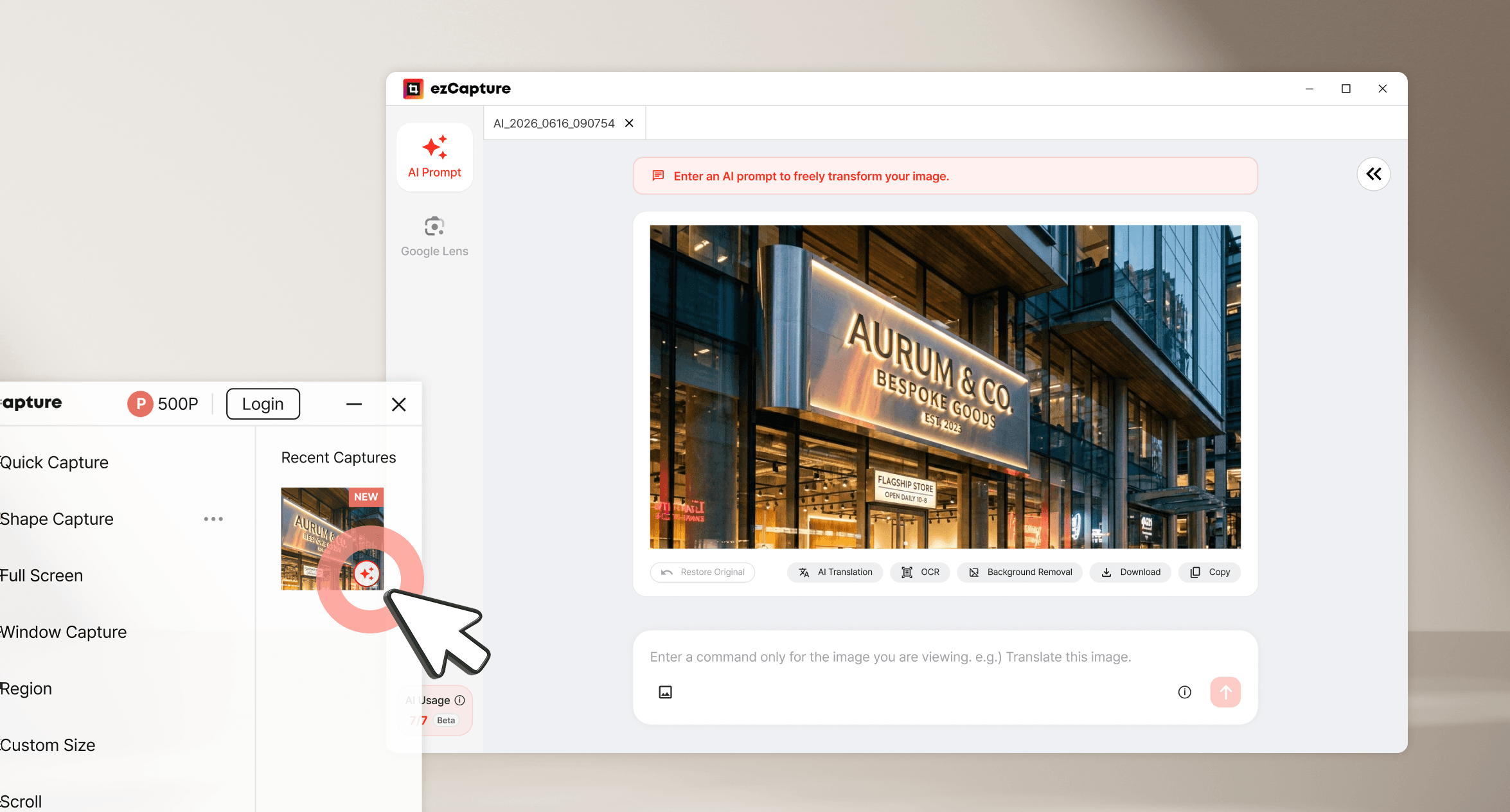
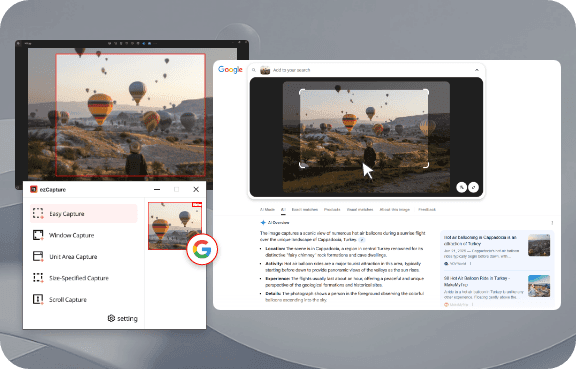
Open AI features from your captured image.
No more complicated capturing!
A smart tool to capture any area you want quickly and easily
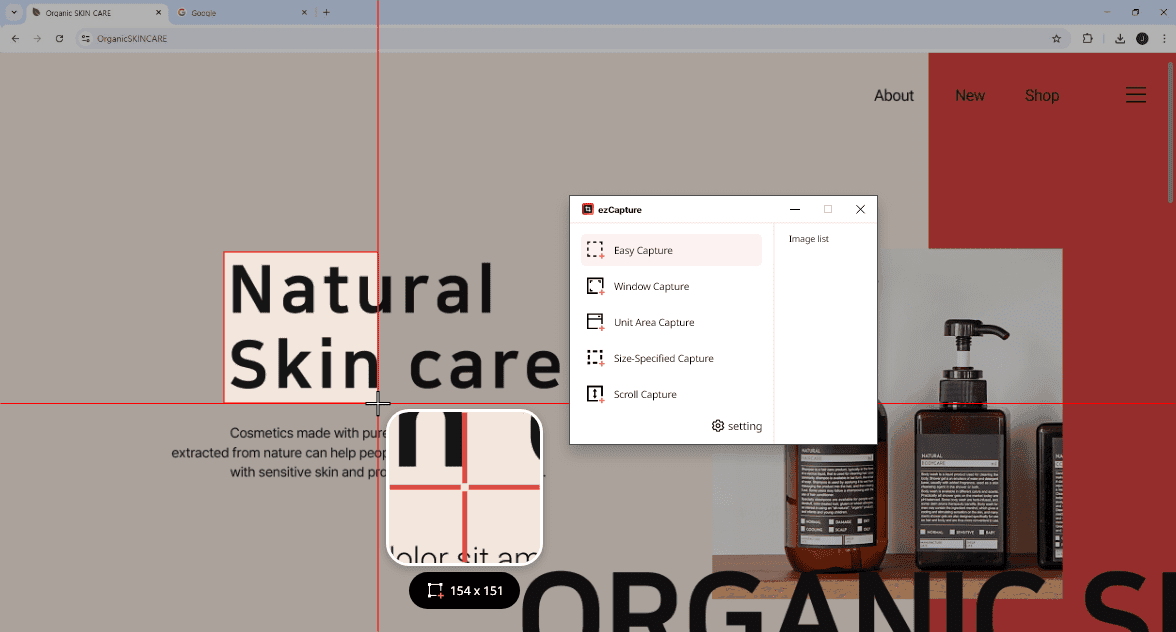
Drag to capture only the area you need.
Boost Your Work Speed with ezCapture
Find out firsthand what makes ezCapture so special.
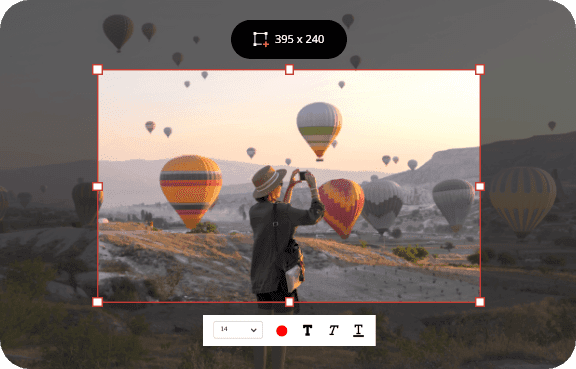
Fast and Easy Screen Capture
Easily capture any screen with a number of different capture modes.

Screen Recording with ezCapture!
Convenient recording for computers or games.
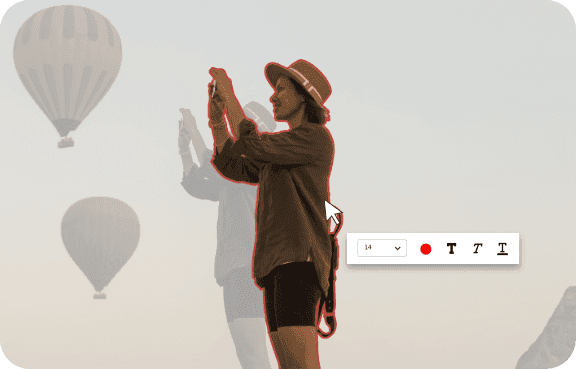
Advanced Image Effects
Edit images with advanced effects like background removal and censoring.
Easy Image Editing
Easily edit captured images with drawing tools, shapes, text, and more.
Real User Reviews
Check out blog reviews and posts with user experiences.
Frequently Asked Questions
Check out why so many professionals choose ezCapture
After the first run of EZCapture, it automatically copies to the clipboard.If you want to disable the setting, after running EZCapture, click Menu > Settings to open the settings window, then you can control 'Always copy capture results to clipboard' in the 'Capture Settings' section.
In the capture result editing screen, you can apply borders to the captured image.Click the border button and adjust the border color, thickness, and roundness.If you set the options in the Roundness tab of Menu > Settings on the EZCapture main screen, they will be automatically applied to subsequently captured images.
Run EZCapture, click Menu > Settings, then change the menu order in the 'Menu Settings' section.
EZCapture is a free public product.Individuals as well as corporations, non-profit organizations, public institutions, and internet cafes can freely use it anywhere.
Run EZCapture, click Menu > Settings, then change the file format in the 'Capture Settings • File Save Format' section.It supports three file formats for captured image files: PNG, JPEG, and BMP, and two file formats for recorded video files: MP4 and GIF.* Transparency is only applied in PNG file format.
Run EZCapture, click Menu > Settings, then change the options in the 'Shortcut Key Settings' section.The default shortcut keys set after the initial installation of EZCapture are as follows:- Ctrl+Alt+D EZ capture- Ctrl+Alt+F Full screen capture- Ctrl+Alt+W Window capture- Ctrl+Alt+U Unit area capture- Ctrl+Alt+S Size-specified capture- Ctrl+Alt+L Scroll capture- Ctrl+Alt+R Screen recording
Run EZCapture, then click Menu > Settings to open the settings window.Then check 'Always auto-save capture results' in the 'Capture Settings' tab.You can also specify a separate save location.*Screen recording files are always automatically saved.
In the capture result editing screen, you can draw simple drawings using pens and shapes.You can select various colors, transparency, and thickness to draw shapes such as rectangles, circles, lines, pens, and highlights.Drawn pictures can be erased using the eraser tool or moved to the previous step using the ctrl+z key.
Scroll capture captures long vertical areas hidden by scrolling all at once.1. Select "scroll capture",2. Move the mouse to the scroll area you want to capture, and it will be automatically selected.3. Click on the selected area, and the scroll will automatically move down from the starting position and capture.