

Smart management for your daily life,
from small ideas to important tasks.
Recommended specs: Window 11,10 File size: 67.5 MB Latest update: 2026.08.31

Create everyday reminders with easy memo features
Manage your life all in one place, from quick and easy notes to calendar integration.
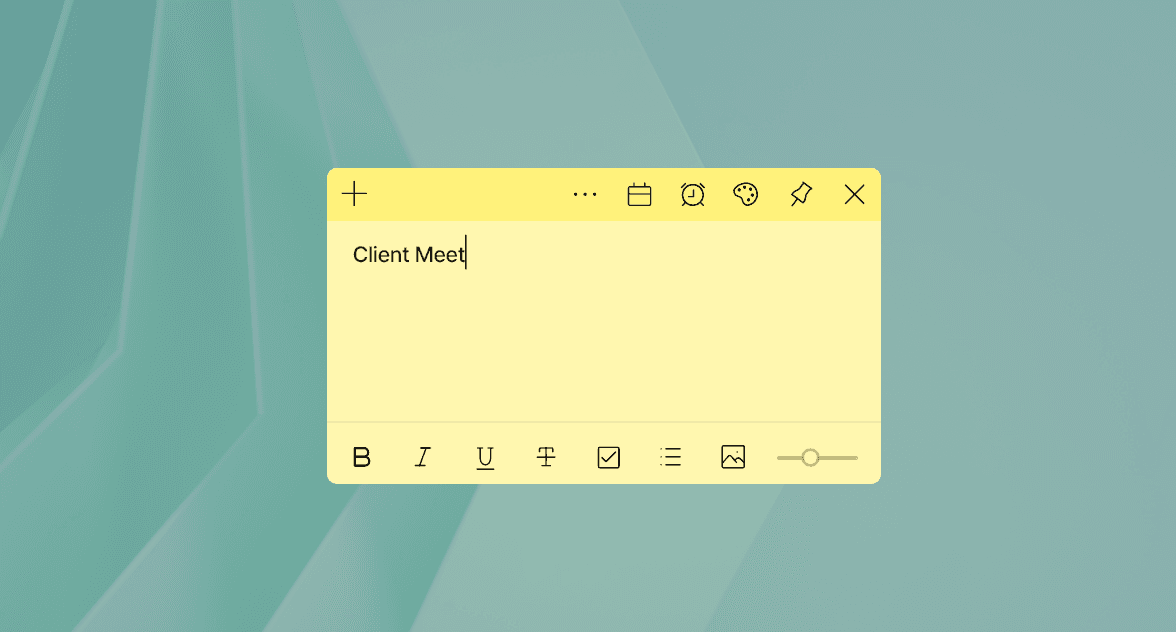
Notes sync automatically between your PC and mobile devices, so you can capture ideas instantly and review them anytime.
A Smart Memory Management Tool
Find out firsthand what makes ezMemo so special.
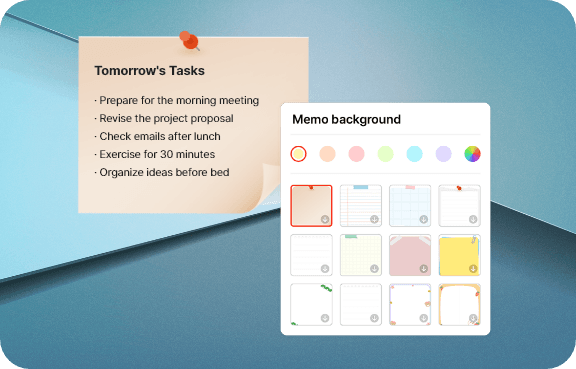
Customize freely
You can change the note's theme and background color, and even save the note's position on the home screen.
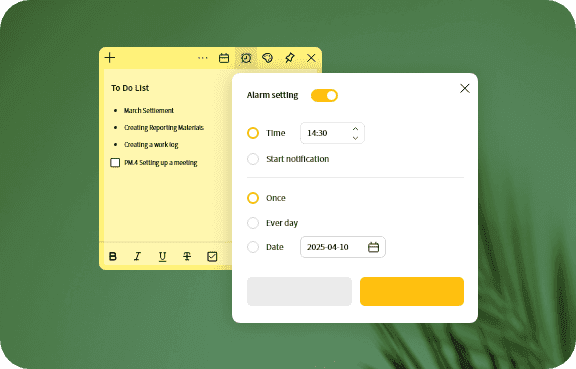
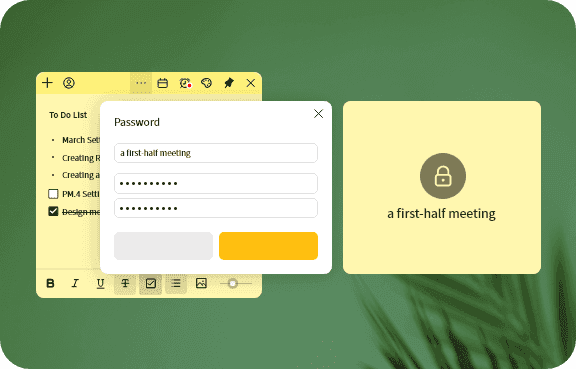
Note Lock Feature (Password Protection)
You can lock important notes with a password to keep them safe.
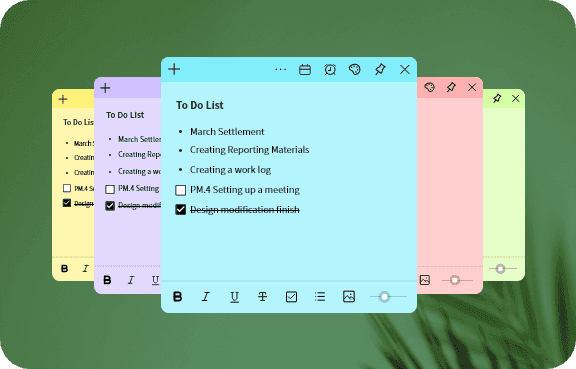
Note Colors, Themes, & Group Categories
You can organize notes by color or group for easy viewing.
Your Own Text Style
You can freely change everything from font selection to size and color.
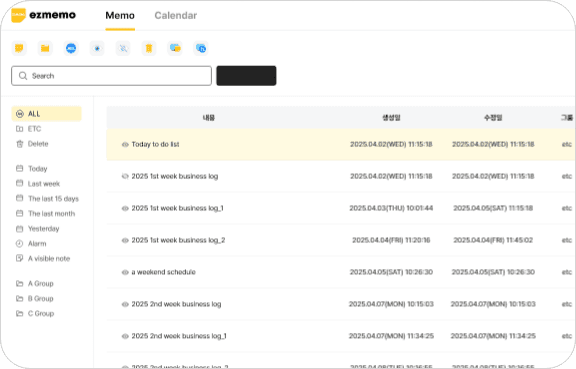
List View & Trash Feature
Easily search by creation date, and deleted notes can be restored from the trash.
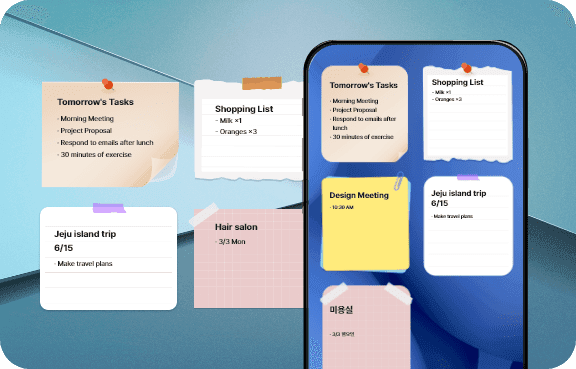
Create Notes Anytime, Anywhere
You can view and edit your notes anytime on both your PC and mobile device.
Real User Reviews
Check out blog reviews and posts with user experiences.
Frequently Asked Questions
Check out why so many professionals choose ezMemo
Yes, you can make your memos more memorable and vivid by attaching photos. Add whiteboard photos from lectures, material from meetings, receipts, online visual resources, and more to your text for easy review, anytime.
Yes, the group creation feature allows you to neatly organize your memos. Create your own categories such as 'Work', 'Study', 'Personal Projects' to classify memos by topic and manage them efficiently.
Yes. Select the desired color from the color palette at the top of the memo. Assign memo colors based on task priority (e.g., red-urgent) or personal classification (e.g., blue-ideas) for quick content understanding at a glance.
Yes, you can set alarms for each memo to ensure you don't miss important appointments like meetings, reservations, or project deadlines.
You can quickly search by memo title and content. Instantly find the information you need to increase your work or study efficiency.
Yes, you can set a password when editing memo titles to encrypt and protect the content. You can also temporarily unlock it with a one-time unlock.
Yes, you can quickly check memos based on when they were written through 'Today', 'Last 7 days', 'Last 30 days' categories.
Yes, you can pin a memo widget so that it always takes precedence and appears on top of other programs.
Yes, you can add, delete, and rename groups from the home screen. Memos may be classified by topic and sorted by name or time.
Yes, you can select an array of colors from the color palette at the top of the memo, and write in different text styles such as bold, italic, underlined, checkbox, strikethrough, bullet points, and transparent.
Yes, you can adjust the desktop widget display settings to hide or show memos.